Connect your Exness UID
Link your Exness account UID to Tape Delta so daily cashback is tracked and your VIP tier starts counting. Registering under the partner code earns the rebate at the broker; connecting the UID is what makes it visible in the app and unlocks the volume-based VIP benefits.
Registering your Exness account under our partner code is what earns the rebate at the broker. Connecting that account's UID to Tape Delta is a separate, one-time step — and it is what makes the rebate visible in the app and starts your VIP tier counting.
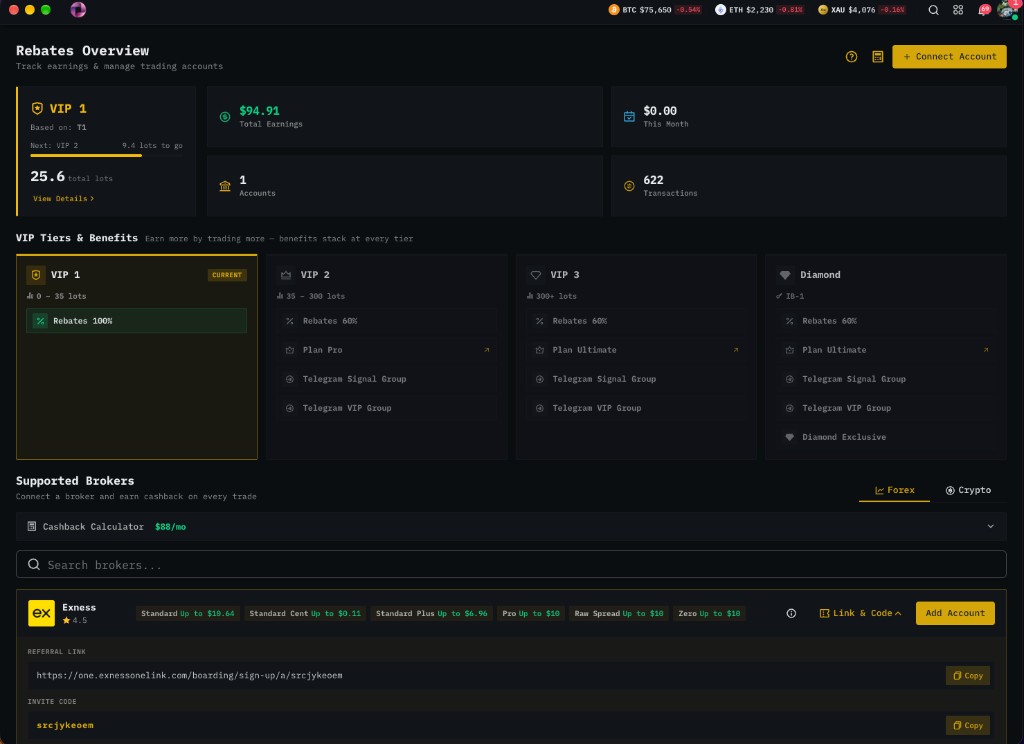
Until a UID is connected, the Rebates Overview shows no tier at all (the VIP card reads —), because the tier is derived from the traded volume of the accounts you have linked. You can be earning rebates at Exness and still see an empty dashboard here.
Before you start
You need one of these:
- An Exness account already opened under our partner code — see How to register a new Exness account.
- An existing Exness account that has been moved to our partner code — see Change your Exness referral.
Connecting a UID that is not under our partner code will link the account, but no cashback will accrue against it. Exness attributes the partner code per trading account, so an account created before a referral change never earns — check this first rather than after a month of trading.
Where the page is
Open Rebates → Forex Accounts in the web app: app.mrd-indicators.com/rebates/forexAccount. The + Connect Account button on the Rebates Overview lands on the same form.
Step 1 — Pick your path
The form opens with two choices:
| Choice | Use when |
|---|---|
| Yes, I have one | Your Exness account already exists (whether or not it is under our code yet). |
| No, create new | You have no Exness account. The form shows the referral code and the registration link to use. |
Pick Yes, I have one to reach the UID fields.
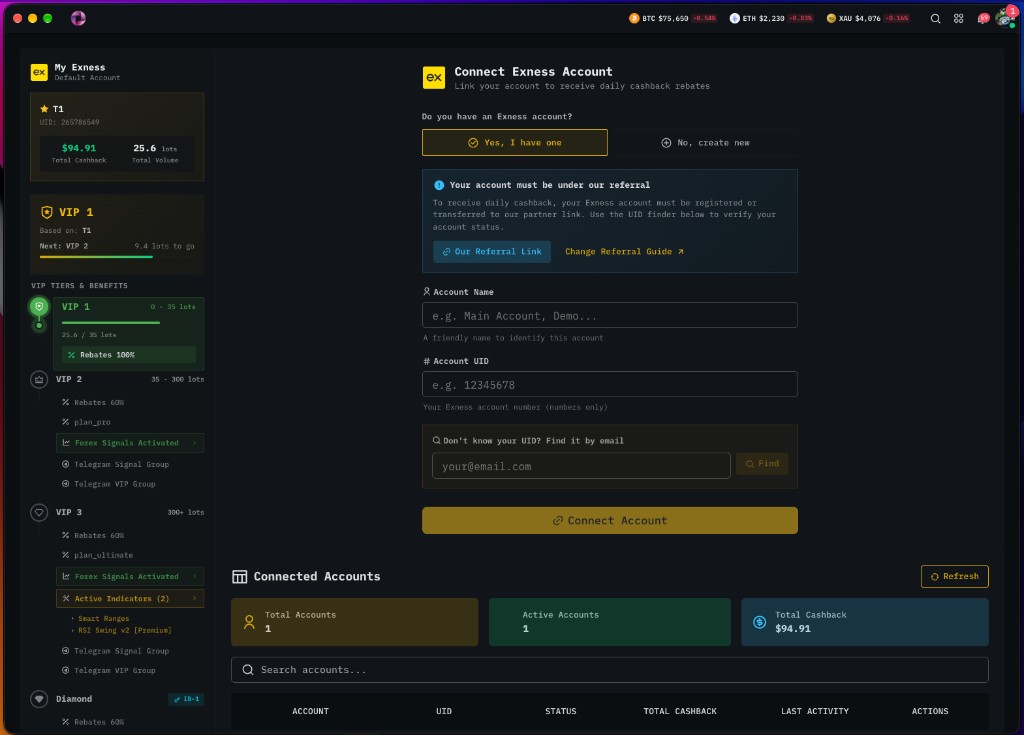
A notice sits above the fields: "Your account must be under our referral." That is the eligibility condition above, restated at the point of entry — it is not a blocker on the form, so the fields will accept a UID either way.
Step 2 — Name the account
Account Name is a label for you only: "A friendly name to identify this account." It does not have to match anything at Exness. Use something you will recognise in the accounts table later — Main, Gold scalp, Demo — because this is the name that appears as the tier basis on the Overview (Based on: <name>) once the account becomes your default.
Step 3 — Enter the UID
Account UID is "Your Exness account number (numbers only)". The field rejects anything else with UID must be numbers only — no spaces, no #, no MT5 server suffix.
Where to find it: it is the account number shown in your Exness Personal Area, and in the app it is displayed next to each connected account (e.g. UID: 265786549).
If you do not know the UID
Use Don't know your UID? Find it by email: enter the email your Exness account is registered with and press Find.
| Result | What it means |
|---|---|
| Found UID: … | A single account matched. The UID is filled in for you. |
| A list to choose from | The email has several accounts. Pick the one you trade on — you can connect the others afterwards. |
| No accounts found for this email | The email has no account under our partner network. Either the email is wrong, or the account is not under our code. |
| Search failed. Please enter UID manually. | The lookup could not complete. Enter the UID by hand; the lookup is a convenience, not a requirement. |
The finder only searches accounts visible to us as a partner. A "not found" result is therefore a useful eligibility signal, not just a typo check: if your account were under our code, it would be found.
Step 4 — Connect
Press Connect Account. The account then appears under Connected Accounts, which lists Account, UID, Status, Total Cashback, Last Activity and Actions.
Status is one of:
| Status | Meaning |
|---|---|
| Active | The link is live and the account is accruing against your totals. |
| Inactive | The link exists but the account is not currently counting — typically no recent trading activity, or the account is not under the partner code. |
You can connect more than one account. The Overview's Total Accounts, Active Accounts and Total Cashback cards aggregate across all of them.
Step 5 — Trade, then let it settle
Nothing else is required. The in-app flow is four steps and only the first two need you:
Register via our link   (~2 min)    ← one time
Connect your account    (~5 min)    ← this guide
Trade as usual          immediate
Receive cashback        automatic
Rebates settle on the broker's daily cycle, so the first figures typically appear within about 24 hours of your first closed trade — not instantly. Use Refresh on the Forex Accounts page to re-pull status and totals rather than reloading the browser.
How the VIP tier follows from this
Once an account is connected, its traded volume feeds the VIP tier:
- The tier is computed from total lots across your linked accounts, shown on the Overview as
N total lots. - The card shows the next tier and the shortfall — e.g. Next: VIP 2 · 9.4 lots to go — with a progress bar.
Based on: <account name>names the account the tier is being read from.- Benefits stack as you climb: higher tiers add things like plan upgrades, Telegram signal and VIP groups, and activated indicators on top of the rebate.
The tier names, lot thresholds and the benefits attached to each tier are served from the backend and rendered live in the VIP Tiers & Benefits grid. They are deliberately not restated here — read the current values off the Overview page, because a threshold documented in prose goes stale silently.
What matters for this guide is the dependency: no connected UID → no lots counted → no tier. Trading volume on an Exness account we cannot see does not advance your tier.
Common problems
| Symptom | Cause and fix |
|---|---|
Dashboard shows — for the tier and 0 lots after connecting. | Lots accrue from closed trades on the broker's daily cycle. If it persists past a day of trading, the account is likely not under our partner code — verify with the email finder, then see Change your referral. |
| UID must be numbers only | You pasted an account label or an MT5 server string. Enter only the digits. |
| Finder says No accounts found but you do have an Exness account. | The account is outside our partner network, or you searched a different email than the one Exness is registered with. |
| Connected, status Inactive. | No recent activity on that account, or the account is not attributable to our code. Trade once and refresh; if it stays inactive, check the referral. |
Cashback is credited at Exness but shows $0.00 here. | The earning account is not the one you connected. Connect the UID you actually trade on — each trading account has its own UID. |
What's next
- Client Trading Support Program — Standard vs Premium benefits once you are earning.
- Rebates overview — how the program and the money flow work.
- Change your Exness referral — if the finder could not see your account.
- Pair signals with Exness rebates — executing Forex Signals on the account you just linked.
- Direct support: @mr_doc on Telegram.