Release as an indicator
Release a TapeScript as a tick heatmap indicator with a legend row, use it in tiled workspaces, and run or stop scripts from the AI Copilot.
A released script runs on the chart as an indicator, with or without the TapeScript widget open.
Run vs release
| Run | Release | |
|---|---|---|
| Start | Run in the widget | Release in the widget, or add from the indicator list |
| Code used | The editor's current code | The code at the time of release |
| Stops when | The widget is closed or Stop is clicked | It is removed from the chart |
| Controls | Run / Stop in the widget | Legend row |
| Saved in the layout | No | Yes |
Release a script
- Open the script in the widget.
- Click Release. Unsaved changes are saved first.
- The script is added to the chart's tick heatmap indicators and starts.
The legend row appears in the script's pane if it draws a "bottom" line, otherwise at the top left of the heatmap.
Saving the file later does not change the released version. When the file differs from the released version, the button shows Update release. Click it to replace the released version on all charts.
To withdraw a release from all charts, click the unrelease button next to Update release.
Legend row
| Control | Action |
|---|---|
| Eye | Hide / show. A hidden script does not run. |
| Settings | Opens the TapeScript widget on the script's Inputs tab. |
| X | Removes the indicator from this chart. |
Released scripts also appear by file name in the tick heatmap's indicator list.
Workspaces
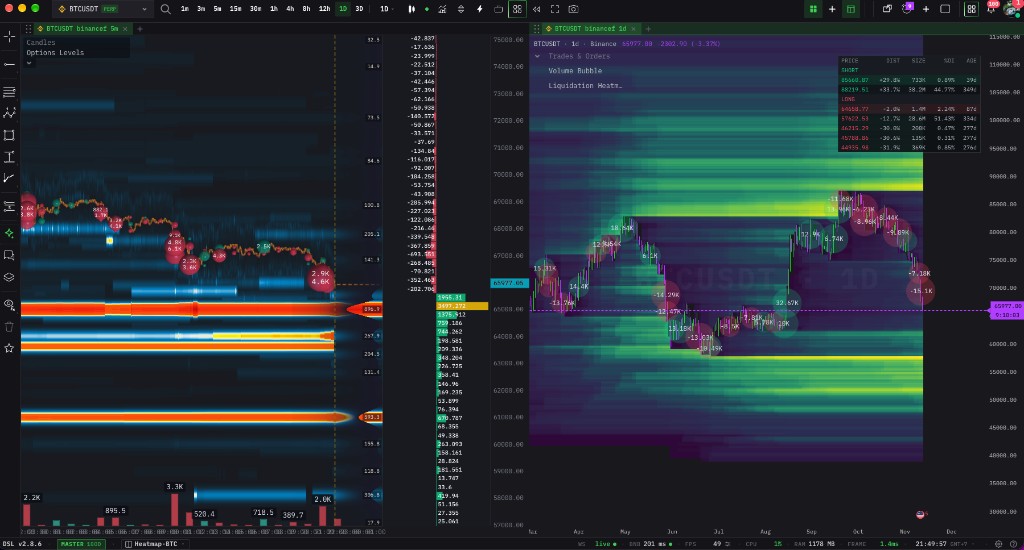
A tiled workspace with a tick heatmap (left) and a candle chart (right). TapeScript is available in the tick heatmap cell.
- Each chart runs its own scripts: the main chart and each cell of a tiled workspace.
- A released script runs on the symbol of the chart it was added to.
- In a tiled workspace, select a tick heatmap cell before opening Widgets → TapeScript. The widget opens in that cell.
- Releases and input values are shared by all charts. Updating a release or changing an input applies to every chart running that script.
- If a cell's chart type is changed from Tick heatmap, the TapeScript widget is hidden in that cell. It returns when the chart type is set back to Tick heatmap.
AI Copilot
The AI Copilot can list, run and stop scripts. Examples:
- "Which TapeScripts are running?"
- "Run the Absorption Watch script."
- "Stop Big Prints."
The Copilot uses the selected chart (in a tiled workspace, the selected cell) and runs scripts only on a tick heatmap. Scripts are referred to by file name.
Limits
Up to 12 scripts can run at the same time per chart, including runs from the widget and released scripts. A script that stops with an error stays stopped until you run it again or re-add it. The error is shown in the Console.