Trade CME from the terminal
Place, modify and close TopstepX orders from the chart, DOM ladder and quick-trade ticket, plus brackets, order pacing and the venue rules to respect.
With TopstepX connected and a tradable account selected, you can enter CME orders from the same surfaces you use for crypto. This page covers the order types, how protection orders behave, and the Topstep rules the terminal follows.
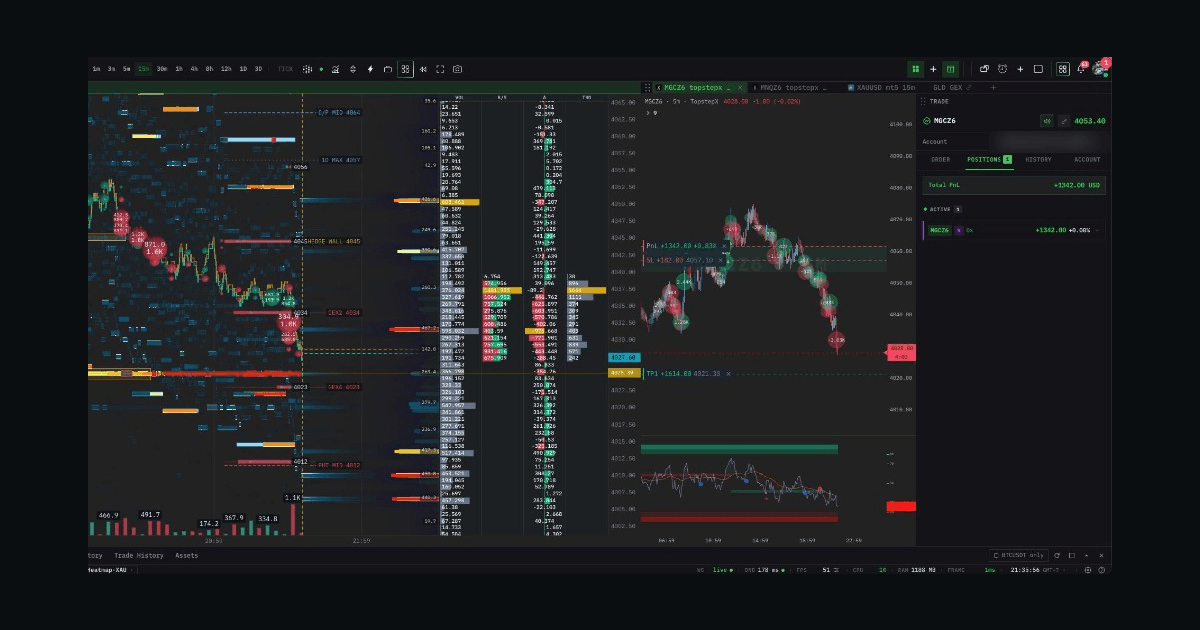
Where you can trade from
| Surface | Best for |
|---|---|
| DOM ladder | Click-trading the book. The fastest way in and out. |
| Quick trade & floating bar | A ticket on the chart, with size and protection pre-set. |
| Positions tab | Managing and flattening what is already on. |
| Open orders tab | Modifying or cancelling working orders. |
| Mobile layouts | The same actions on a phone. See Trade from your phone. |
Each surface shows the account you selected when connecting. If it is not tradable, the controls are disabled and show the reason.
Order types
| Type | Notes |
|---|---|
| Market | Immediate fill at the book. |
| Limit | Resting at your price. |
| Stop | Market on trigger. |
| Trailing stop | Trail distance is set in ticks. |
| Join bid / join ask | Queue at the current best price. |
Modify changes price and/or size on a working order. Cancel pulls it. Close flattens a contract in full or in part. Reverse and cancel-all are available from the trade surfaces.
Size is in contracts, the venue's own unit, not lots. One contract of GC is 100 oz. Check the contract spec before you size up.
Protection orders and brackets
Topstep accounts run in one of two bracket modes:
- In Position Brackets mode the venue rejects a stop/target attached to the entry, but the entry itself is still created. You can end up with a live, unprotected position after a "rejected" message.
- For this reason, attaching protection to an entry is off by default. The stop and target are sent as separate orders once the position exists. This works in both modes.
- If your account accepts attached brackets, turn on Auto OCO in the trade settings. The setting is saved per account.
- The terminal checks every order attempt against the venue before showing the result. Positions and Open Orders show what actually exists, including the rejected-but-created case above.
In either mode, check the Positions tab after an entry.
Orders are final
Futures orders cannot be reviewed, adjusted or reversed after the fact. The terminal asks you to confirm every destructive action (flatten, close, cancel all) in an in-app dialog before it is sent.
Order pacing
Topstep forbids high-frequency trading through the API and enforces its own rate limit. The terminal stays well under it:
- Entries and modifies are paced. A burst is spread out rather than sent at once.
- Exits are never paced. Cancel, close and flatten are sent immediately, so you can always get out.
- Cancel-all and flatten handle your orders one at a time.
Attaching a bracket adds at most two orders per action.
Venue rules the terminal follows
These come from Topstep's API policy. Breaking them can get your account suspended, so the terminal enforces them.
| Rule | How it works here |
|---|---|
| Order flow must originate from your own device | Your orders go from the browser you are trading in straight to TopstepX. No relay or proxy of ours sits in the path, and we keep no server-side copy of your fills, positions or P&L. |
| No VPS, remote servers or VPNs for order entry | This is your responsibility. Trade from your own phone, laptop or desktop. Do not use a VPN or a remote desktop session. |
| Live Funded accounts cannot use the API | The order controls lock with the reason. See account types. |
| No automated trigger that can place orders from a server | Auto Trade is not offered for TopstepX. Alerts can notify you; nothing of ours places a CME order for you. |
| No high-frequency trading | Pacing, above. |
| One key reaches every eligible account | The account is always picked explicitly and shown on every trade surface. |
Alerts remain fully available. Price, indicator and screener alerts can notify you on your phone. You then place the order yourself, as the policy requires.
What the data looks like on CME
| What you get | |
|---|---|
| Tape | Real aggressive trades with the side, so footprint, delta and CVD use real data, not an estimate from the candle body. |
| Depth | Best bid / best ask. TopstepX provides top-of-book only, so the DOM shows the inside market rather than a full ladder of resting size. |
| History | Full candle history on every timeframe, plus tick history for the tick and footprint chart types. |
| Volume | Real traded volume. |
For native footprint with full L2 depth on CME, use the Rithmic connector. It carries a deeper book and its own order path, and requires your own Rithmic account.
Before your first live session
- Test the whole loop on a Practice account: connect, place, modify, cancel, flatten.
- Confirm the account name on the toolbar is the one you mean to trade.
- Set your size defaults in the trade settings before the session, not during it.
- Decide on your protection mode and verify it once with a small position.
- Find the flatten button on the device you will be using, especially on mobile.