Connect TopstepX
Step-by-step TopstepX setup — the account you need, the API subscription, generating the key, pasting email plus key, and picking the trading account.
This page covers linking an existing Topstep account and trading CME from the chart. It takes about five minutes. If you do not have a Topstep account yet, start at Topstep account types.
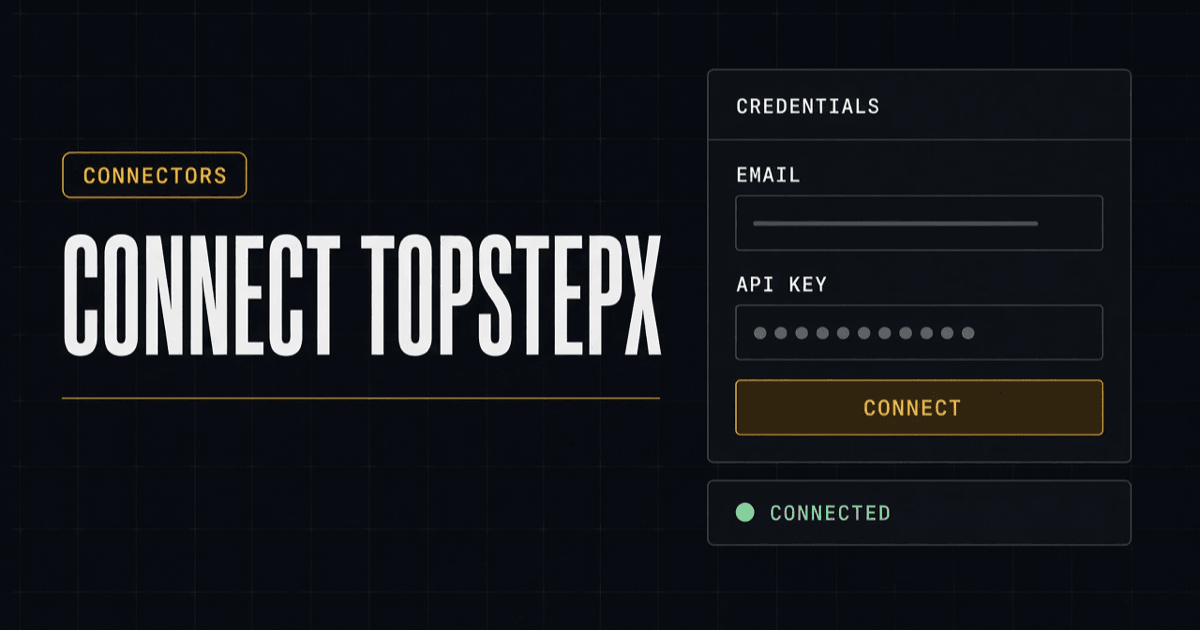
You are linking TopstepX, Topstep's own trading platform. Your API key signs you in to it. The terminal then charts the CME board and sends your orders to the account you select.
Before you start
| Prerequisite | Why |
|---|---|
| A Topstep account (Practice, Trading Combine, Express Funded or Live Funded) | The connector authenticates against it. |
| API access enabled on the TopstepX side | Without it, the key is rejected with API subscription not active. |
| An API key generated in TopstepX → Settings → API | This is the credential you paste. |
| The email address you signed up to TopstepX with | Use the login email, not your display name or username. |
| A Tape Delta account, signed in | Connectors are per-user; see Register an account. |
Order entry also needs a tradable account: Practice, Trading Combine or Express Funded. Live Funded accounts stream data but cannot send orders through the API. See account types.
Step 1 — Turn on API access in TopstepX
Sign in at topstepx.com. API access is a separate add-on to your Topstep subscription. Switch it on (and pay for it, where their plan requires it) before using a key. Check your billing page for the current terms. Topstep sets them; we do not resell any part of it.
If you skip this step the key still generates, but every connection attempt fails with API subscription not active — check topstepx.com/billing.
Step 2 — Generate the API key
- In TopstepX, open Settings → API.
- Click Add API Key (name it
Tape Deltaso you remember what it is for). - Copy the key string the moment it appears. Treat it like a password.
- Make sure the key's toggle is enabled. A disabled key fails with
API key disabled.
Detail, rotation and revocation: Get your TopstepX API key.
Step 3 — Open API Connect in the terminal
- Open the chart terminal.
- Widgets → API Connect.
- Switch the group tab at the top to CME.
- Click the TopstepX row → Connect.
Shortcut: the venue filter row at the bottom of the symbol search has the same Connect button.
Step 4 — Paste the credentials
The form asks for two fields:
| Field | What to enter |
|---|---|
The email you use to sign in to TopstepX, e.g. [email protected]. | |
| API Key | The key string from Step 2. It is masked as you type. |
Click Connect. The connector authenticates immediately and the row flips to one of:
| Result | Meaning |
|---|---|
| Connected | Credentials accepted. The CME board and your account are live. |
Email not found | Wrong email — use the TopstepX login email. |
Invalid credentials | Email/key mismatch, or a username was used instead of the email. |
API subscription not active | Step 1 not done. |
API key disabled | The key exists but is switched off in TopstepX. |
Every message and its fix: Troubleshooting.
Step 5 — Pick the trading account
One API key reaches every eligible account on your Topstep profile, so you pick the account yourself. The account picker is in the API Connect panel and in the DOM ladder's Settings → Trade.
- The selection is saved per venue and kept after a reconnect.
- Accounts that cannot trade via API are listed with the reason.
- The selected account is always shown on the trade surfaces. There is no default account.
Step 6 — Verify
With the row at Connected, check:
- The API Connect panel shows your account name, balance and mode (Practice or Live funded).
- Symbol search returns CME instruments — type
ES,NQ,CL,GC. - Open one on the chart; candles load and the price updates live.
- Open positions, if you have any, appear in the panel and in the Positions tab.
If the chart loads but the account panel is empty, hit Refresh account on the row.
How the credential is handled
- The API key is encrypted at rest on our side. It is never returned to the browser, never shown in full again, and never written to logs.
- Each session uses a short-lived token instead of the key.
- Your orders are sent from the device you are trading on, straight to TopstepX. We do not route, relay, mirror or replay your orders through a server. Topstep's rules require this.
- Disconnecting removes the stored credential immediately. Positions and working orders stay as they are at the venue; we do not touch them.
More on the trading side of those rules: Trade CME from the terminal.
Disconnecting
API Connect → TopstepX row → Disconnect, then confirm.
- The saved credential is removed and the live account feed stops.
- Open positions and orders remain at TopstepX, untouched.
- Charts of CME symbols stop updating until you reconnect.
- Reconnecting later restores everything, including your account pick.
Common pitfalls
- Username instead of email. The connector wants the sign-up email. A username fails with
Invalid credentials. - Key generated but API access never enabled. The two are separate steps on the Topstep side (Step 1 and Step 2).
- A trailing space in the pasted key. Copy carefully; the field trims, but a line break pasted from a PDF can survive.
- Expecting order entry on a Live Funded account. It connects and charts fine; orders are blocked by the venue. Why.
- Expecting full L2 depth. TopstepX provides best bid / best ask only. The tape is real and complete; the resting book is top-of-book.