Trade from your phone
Install the web app on iPhone, iPad or Android to chart CME and manage your Topstep positions from your phone, with no desktop install.
The terminal runs in the browser on phones, tablets and desktops. Your TopstepX connection is saved to your account, not to a device, so the same charts, DOM and positions open wherever you sign in.
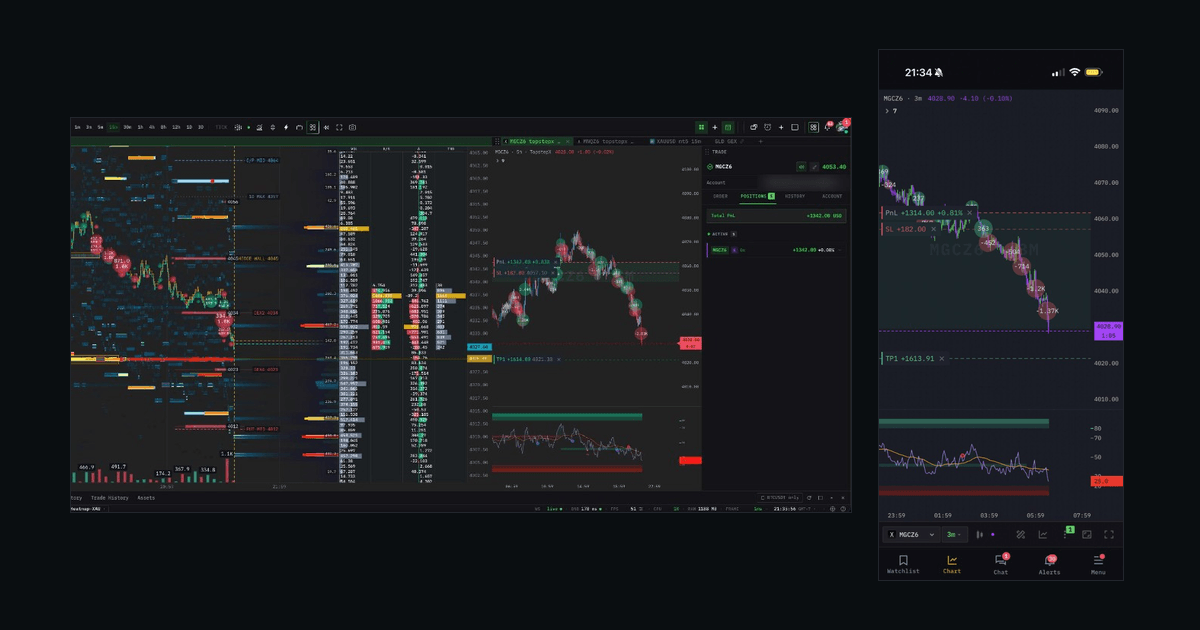
What you get on a phone
| On your phone | |
|---|---|
| Charts | The full chart terminal, single pane, with every chart type — candles, tick and footprint included. |
| Indicators | The same catalogue and the same per-indicator settings as the desktop. |
| CME data | The same real tape your TopstepX connection feeds the desk. |
| Order entry | Quick-trade ticket, chart trade bar and the DOM, on a tradable account. |
| Positions | Live P&L, close and flatten from the positions sheet. |
| Alerts | Push notifications that fire with the tab closed. |
Layouts, drawings, watchlists and indicator settings are saved to your account, so the phone opens the same chart you left on the desktop.
Install the app
The app installs from the browser as a Progressive Web App (PWA), with no app store. You get a home-screen icon and a full-screen chart with no address bar.
- iPhone / iPad — open the app in Safari, tap Share, then Add to Home Screen.
- Android — open it in Chrome, menu → Install app / Add to Home screen.
- Desktop — the install icon in the address bar; it becomes a windowed app.
Full walkthrough for every platform: Add to Home Screen.
One sign-in covers all of them. Your TopstepX connection is linked to your account, so you connect once, not once per device.
The mobile layout
The toolbar collapses into a More menu, the drawing tools become a drawer, the side panel swipes in from the right and the bottom panel swipes up. Multi-pane layouts are desktop-only; on mobile a single pane fills the screen. Details and gestures: Mobile experience.
Topstep trading rules on a phone
Topstep requires that order flow originates from your own personal device. Your own phone meets this rule. Orders go from it straight to TopstepX with nothing of ours in the path.
The policy forbids a VPS, a remote desktop, a VPN, or a server placing orders for you:
- Trade from your own phone, tablet or laptop on a normal connection.
- Do not trade through a VPN or a remote-desktop session into another machine.
- Do not leave anything running that could send an order while you are away. For this reason Auto Trade is not offered for TopstepX. See Trade CME from the terminal.
To step away from the screen, use alerts. The alert notifies your phone, and you decide whether to place an order.
Common uses
- Running the Combine away from the desk. Enter from the desk in the morning, manage the position from the phone at lunch.
- Flatten before news. The positions sheet and the flatten button are two taps from the home-screen icon.
- Second screen. Phone on the DOM, desktop on the chart, same account, same data.
- Travelling. No install and no licence transfer.
- Watching the open away from the desk. A push alert on an ES level opens the chart when tapped.
Practical notes
- Set size defaults before the session. Typing size on a phone while price moves leads to mistakes.
- Know where flatten is. Open the positions sheet once before you need it.
- Battery and mobile data. The chart is a live data feed; on a long session, plug in. In the background the app pauses work it does not need, which saves battery.
- Rotate to landscape on a tablet for the full desktop layout; phones stay single-pane in both orientations.
- Lock your phone. Anyone holding an unlocked device with the app installed can reach your trading controls. Use the device passcode, and sign out on anything you share.
Related pages
- Add to Home Screen — install on every device.
- Mobile experience — the gestures and the layout.
- Alerts overview — be away from the screen safely.
- Trade CME from the terminal.